Batch Annotation
Upload a variant file and FAVOR turns it into a queryable variant list with annotations, validation metadata, and downstream analysis entry points. Use this workflow when you have more than a few variants and want one place to annotate, inspect, and analyze them.
Working offline or at WGS scale?
Before you upload
Supported formats
CSV, TSV, VCF, and Parquet are accepted. FAVOR detects the file type and delimiter automatically.
Variant identifiers
The smoothest path is a file with rsIDs or coordinate-based variant columns that can be mapped cleanly.
Column review
If your headers are close to standard names, auto-mapping usually works. You can still override any mapping before submission.
Recommended first run
Start with a small file so you can verify the mapping and output shape before scaling up to a larger variant list.
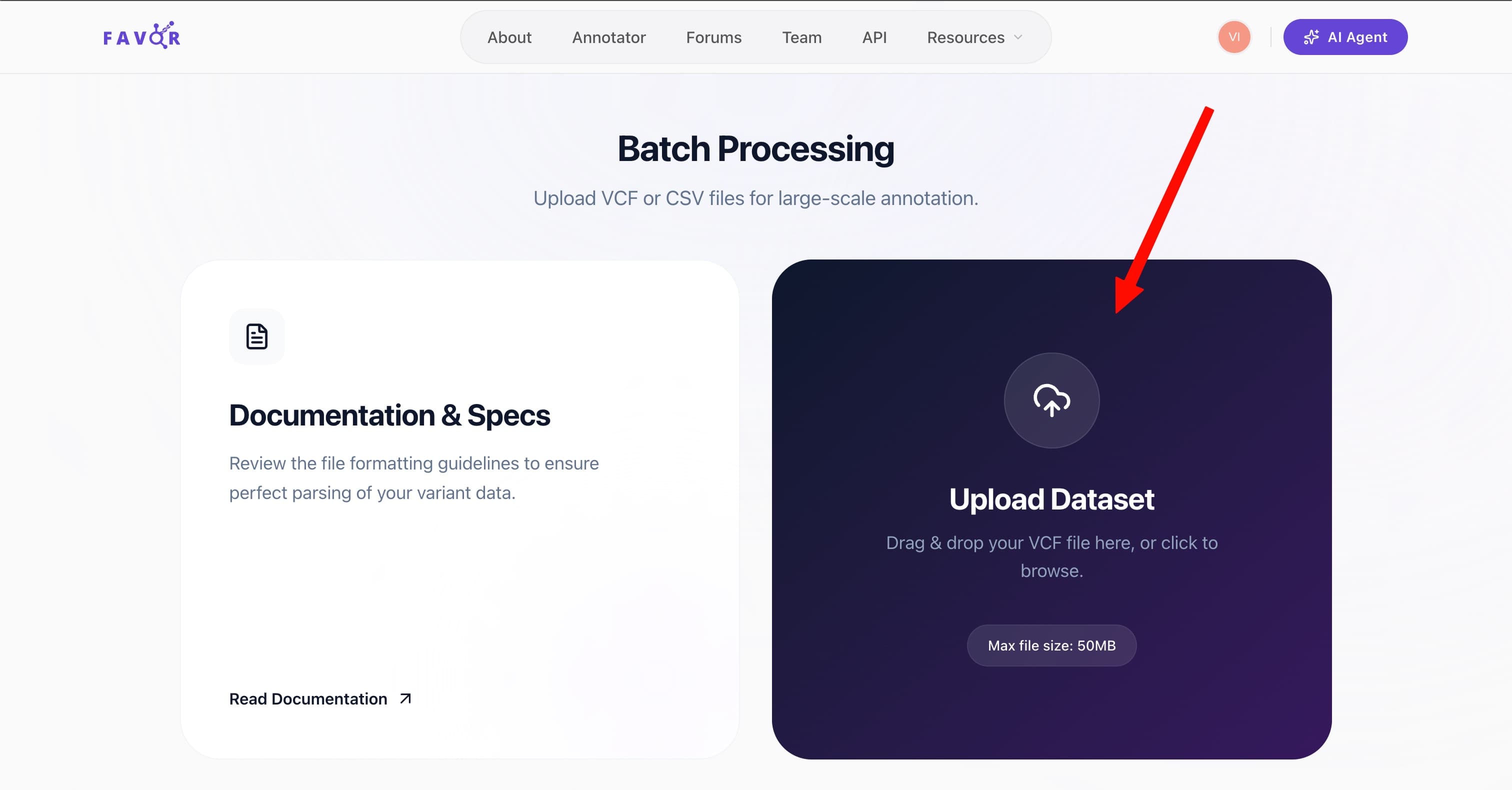
Upload and validate
Upload the file
Drag and drop the variant list file into the upload area. FAVOR prepares a preview before you commit to the run.
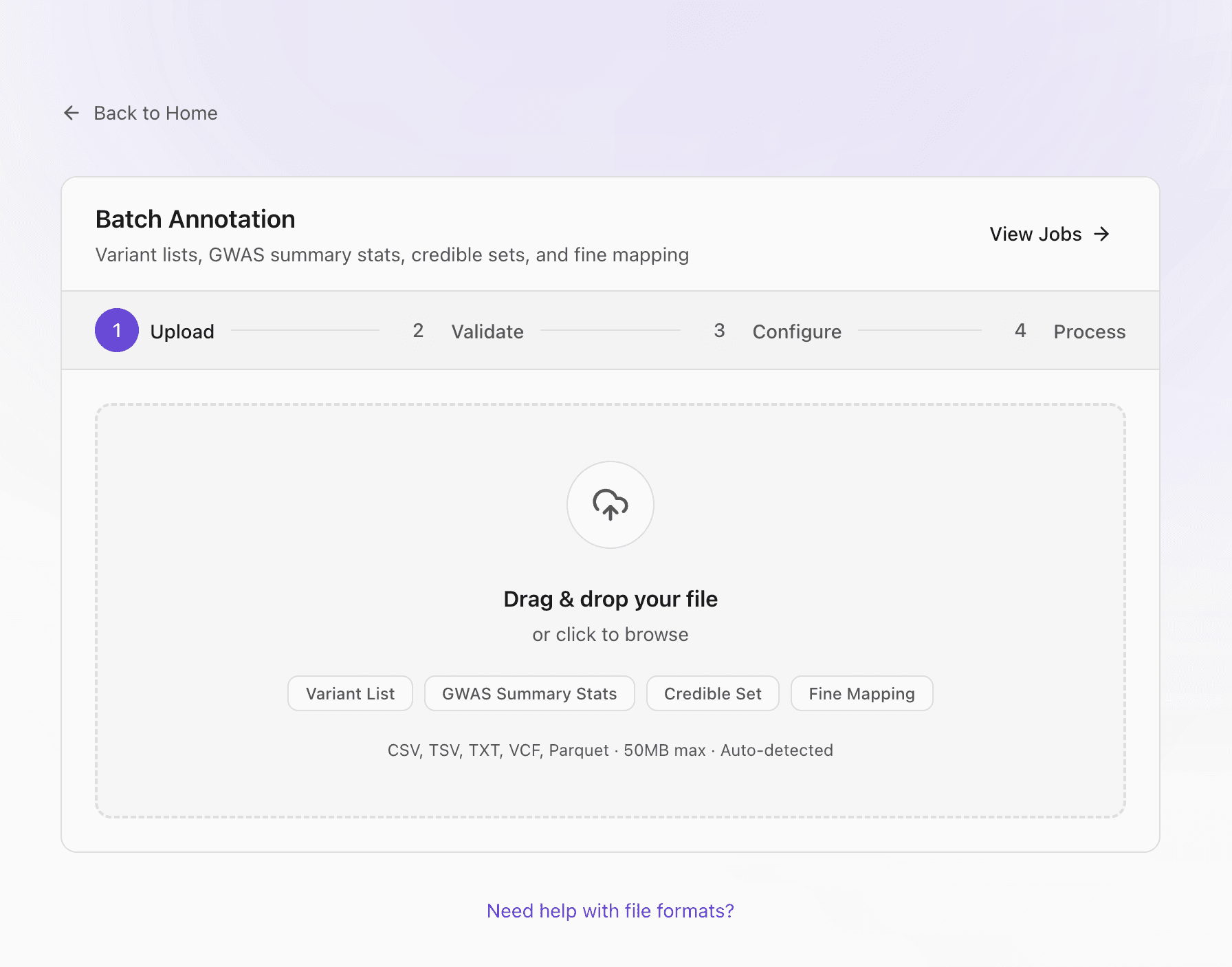
Inspect the validation summary
Check the detected dataset type, row count, schema, and confidence score. This is where malformed files usually show up.
Confirm the sample values
The preview is there to help you verify that the detected column kinds match what your file actually contains.
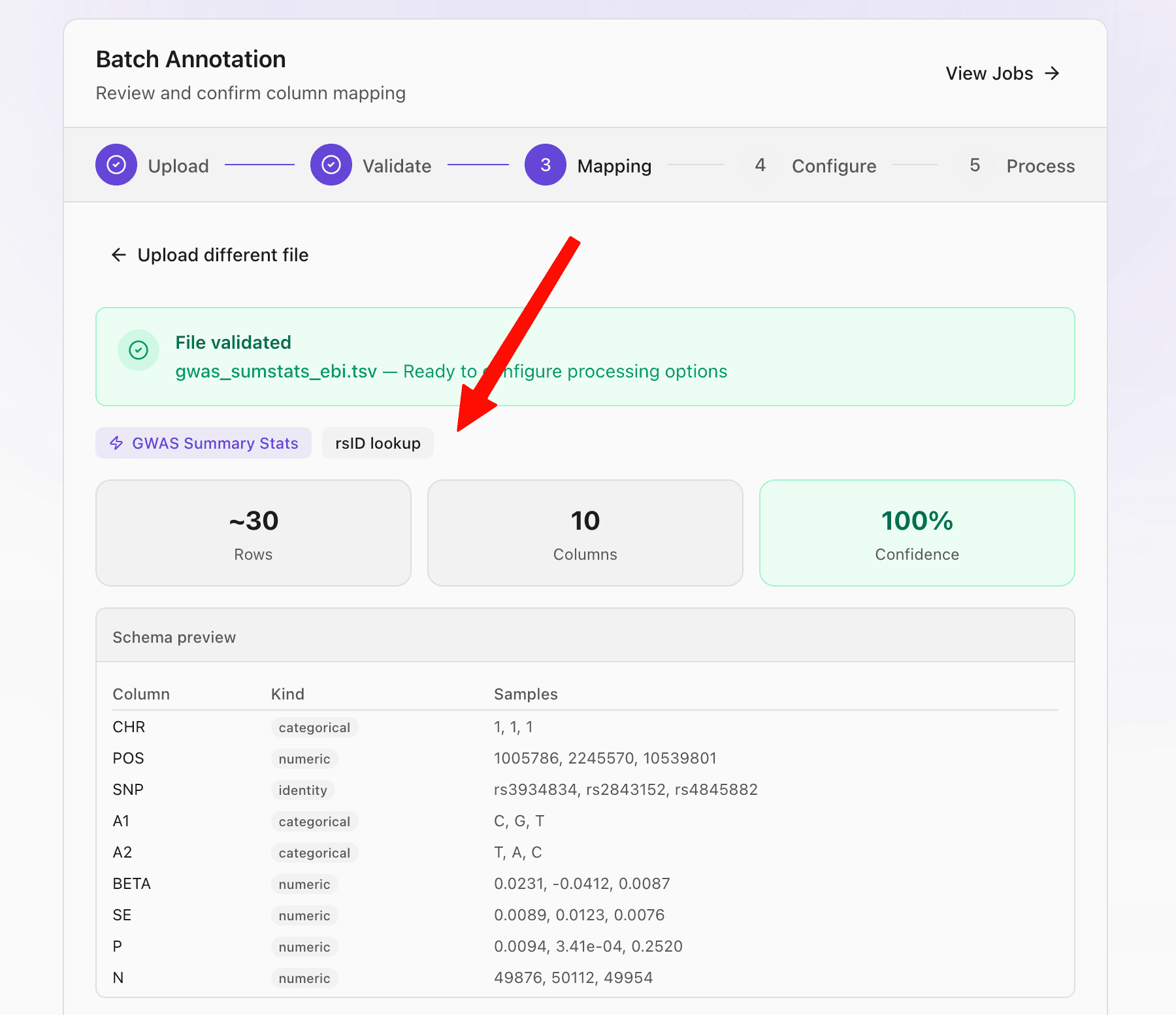
Map columns
FAVOR maps your incoming columns to canonical names. Review this step carefully, especially if your file uses project-specific headers or ambiguous abbreviations.
Auto-mapping
Exact and alias matches are detected automatically. This is often enough for standard GWAS or variant list files.
Manual override
If a column lands on the wrong canonical field, override it before submission. This is the last clean checkpoint before annotation runs.
Review results
When the job finishes, the result page becomes the handoff point for everything else: download the variant list, open analytics, or send it directly to the AI agent.
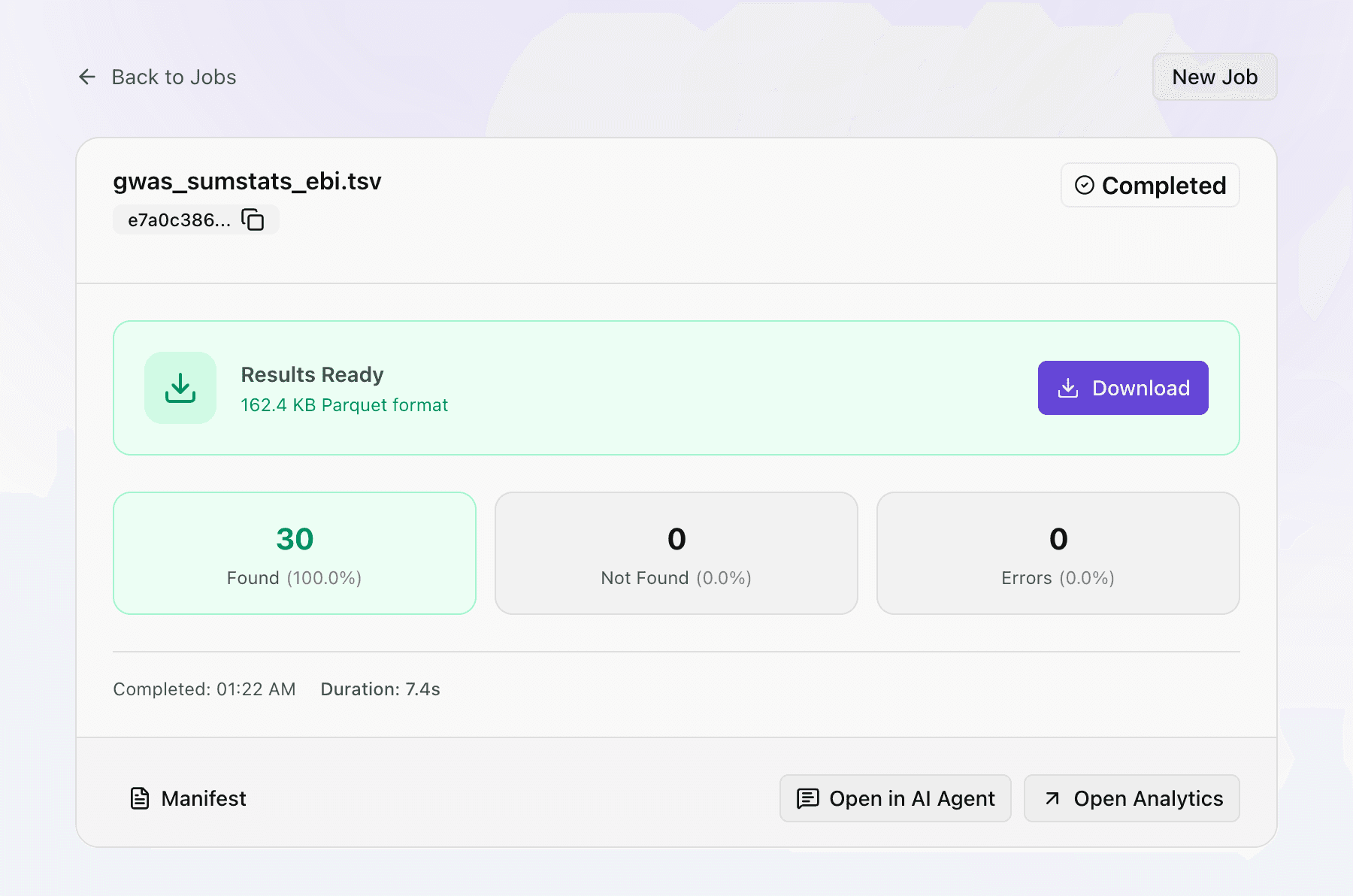
Analyze the variant list
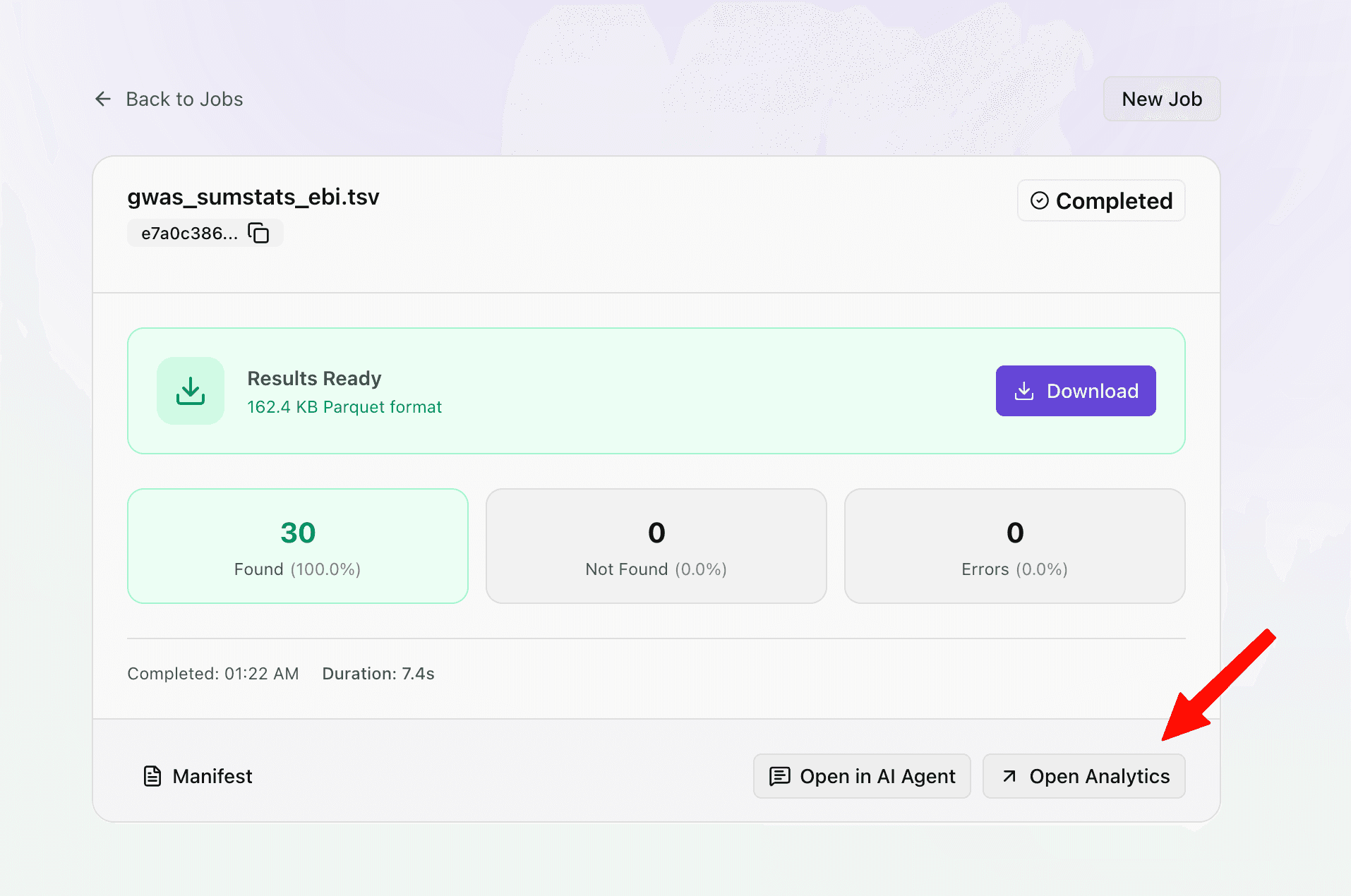
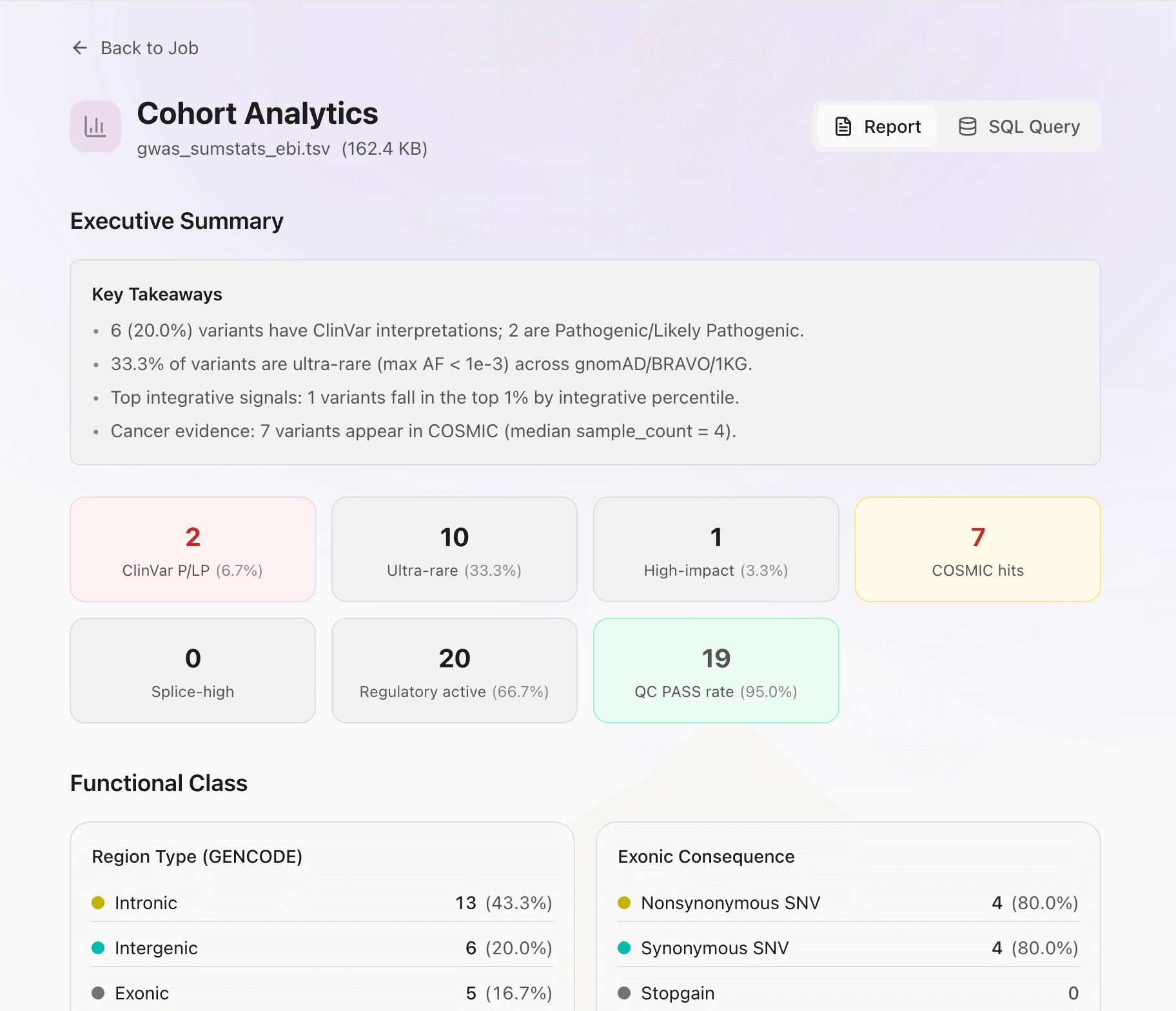
Open Analytics
Use the built-in dashboard for quick summary charts, distributions, and first-pass inspection.
Stay in the browser
The analytics view is useful when you want deterministic summary views without switching into a conversational workflow.
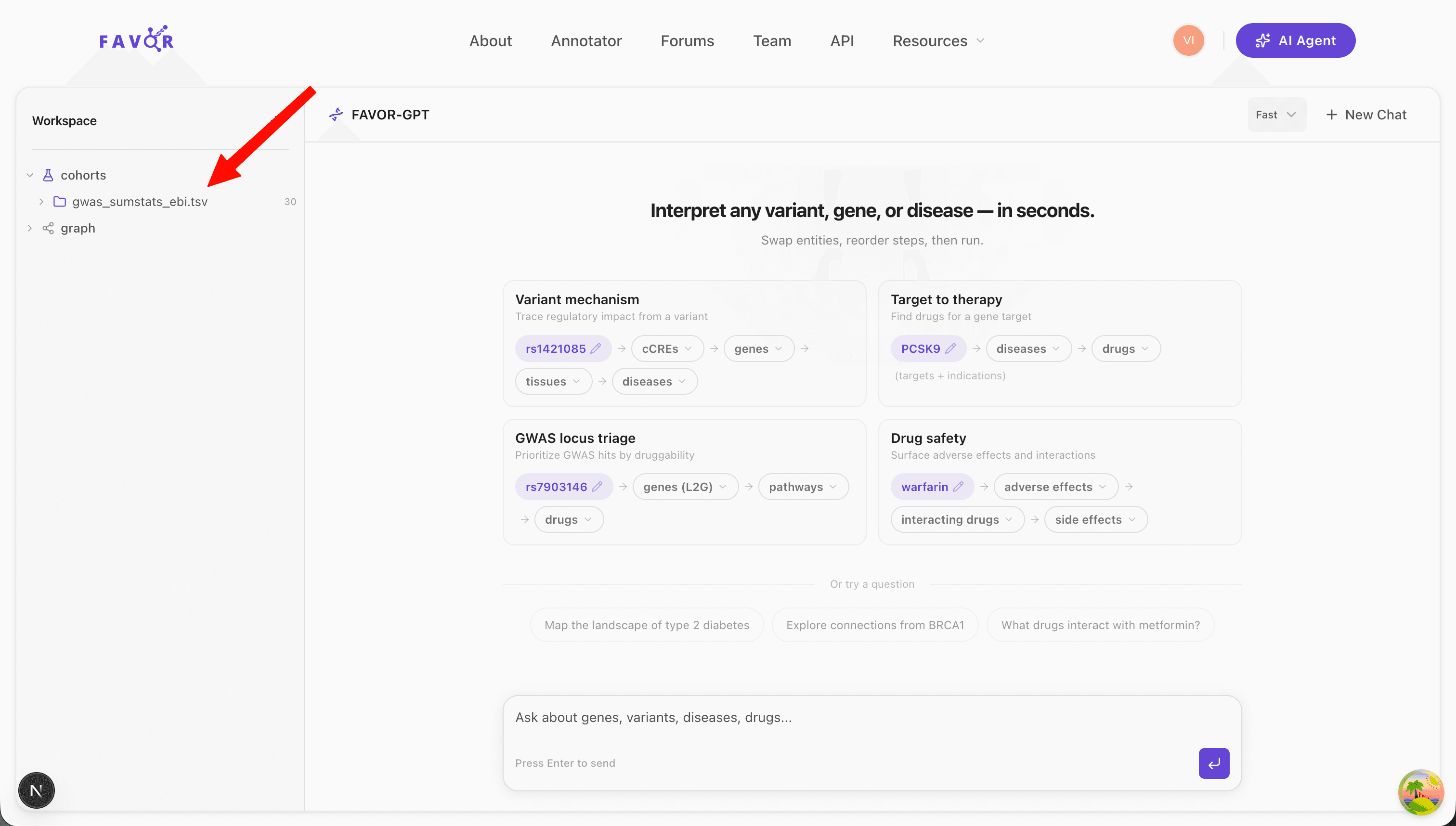
Open in AI Agent
Use the agent when the next step is exploratory, comparative, or statistical rather than just descriptive.
Jobs dashboard
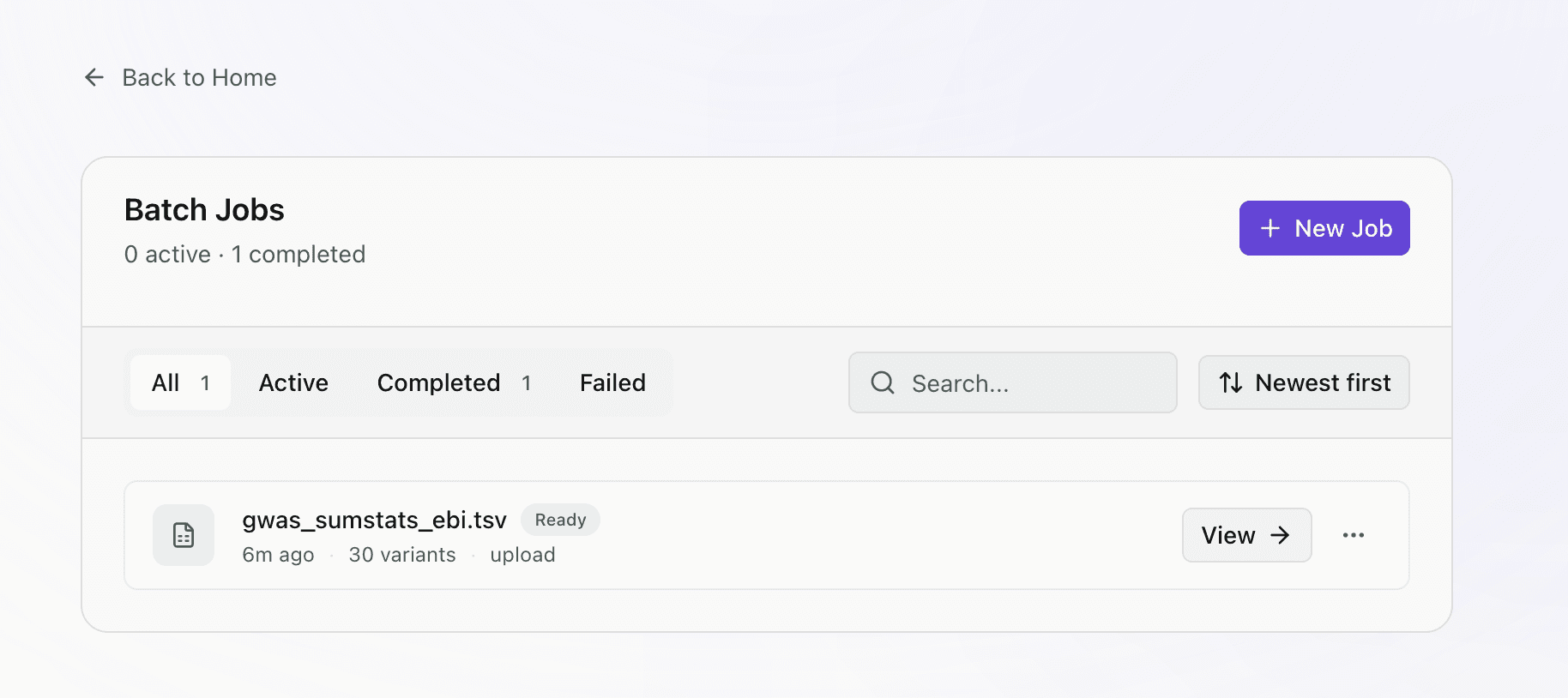
The jobs dashboard is the history view for your uploads. Use it to revisit completed variant lists, filter by status, and reopen analysis later.
Start small
Engineering deep-dive